HOW TO INSTALL & USE MLC POWERPOINT ADD-IN
• Work twice as fast as average users
• Design impactful slides
• Access millions of HD assets
• Create high-impact presentations effortlessly
• Boost your productivity





INSTALL THE ADD-IN
2.

Double-click on the setup.exe file
to run the installation process.
Important:

*
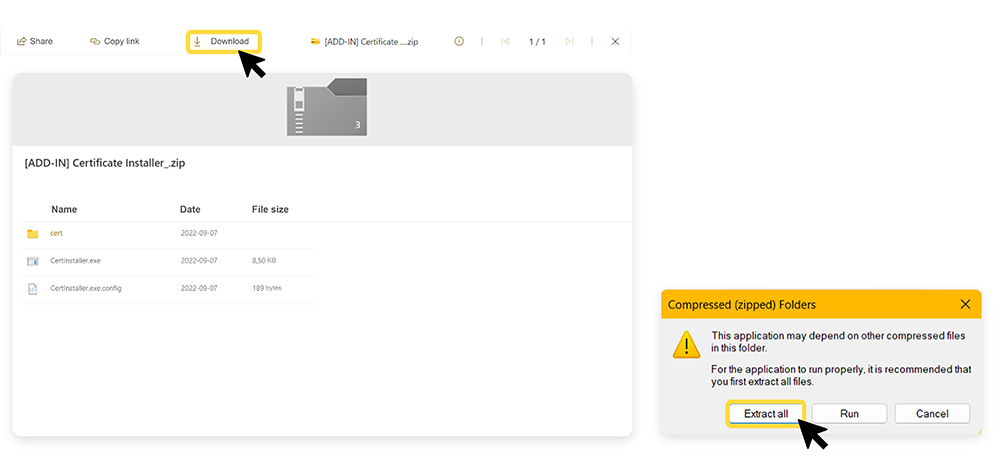
If this window pops up, please download the certificate HERE by clicking Download to get the ZIP.
**
After downloading, Extract All the files from the ZIP package and click on CertInstaller.exe
In the pop-up windows click YES 3 times to install all the certificates.
Now, go back to Step 2.
3.

Click install to proceed.
4.

Click Close when the installation is done.
ACTIVATE YOUR LICENSE
5.

Launch PowerPoint and click on the new MLC tab.
Then click on the Activate button.
6.

Insert the license code you have received by email and click the Activate button.
TIP: The license code should have this format: XXXXX-XXXXX-XXXXX-XXXXX-XXXXX
7.

Accept MLC Add-in Terms and Conditions.
8.

Your license is activated, click OK.
9.
Check: the icons of the MLC PowerPoint Add-in will turn into color as a confirmation that the tool is active and ready to be used.
If the MLC ribbon is empty, please restart your PowerPoint.
HOW TO USE MLC ADD-IN FUNCTIONS
From presentation makers for presentation makers, MLC PowerPoint Add-in is a proven tool to speed up your recurring tasks in PowerPoint and get faster team results while maintaining incredible accuracy and consistency throughout your presentations.
FAQs
Below you’ll find answers to the most frequently asked questions about our add-in —
designed to help you get the most out of its features and functionality.
Please contact the MLC Training Team at training@mlcpresentations.com, who will promptly switch your license to the new device.
No, the license is valid for use on a single device only.
No, the add-in is only compatible with Windows operating systems.
There are no known conflicts. However, if you experience any issues, please contact the Training Team at training@mlcpresentations.com for assistance.
The license is valid for one year.
No, the license is not renewed automatically. Please contact the Training Team at training@mlcpresentations.com to renew your license.
Yes, the license can be transferred. The new user will become the sole owner of the license.
Please contact the Training Team at training@mlcpresentations.com to reassign the license to a new user.
Yes, a 7-day trial period is available.
For technical support, feel free to reach out to: training@mlcpresentations.com
