
Key Takeaways:
- The balanced arrangement of elements on PowerPoint slides makes them easier to read and conveys the message more clearly. Precise alignment avoids distractions and communicates professionalism, while a disorderly layout can compromise even the best content. Using the alignment and auto-distribution tools allows you to obtain a clean and coherent result without imprecise manual interventions.
- Alignment organizes objects along a common reference, while distribution ensures uniform spacing between multiple elements. For a visually harmonious layout, PowerPoint offers automatic functions that avoid positioning errors. However, the software imposes some limitations that, in complex presentations, may require manual adjustments.
- To speed up the alignment and distribution of numerous elements, the MLC PowerPoint Add-in offers immediate commands, avoiding navigation through menus. In addition, customizing the Quick Access Toolbar allows you to always have the most used functions at hand, optimizing workflow and reducing the time needed to organize slides.

An orderly and balanced layout makes each slide clearer, improving visual communication and the impact of the message
An accurate alignment and a balanced arrangement of the elements in PowerPoint slides… trust me, they make all the difference between an effective, smashing presentation and one that makes you want to turn everything off, even your brain!
When text, images and shapes are arranged in an orderly and harmonious way, visual communication is immediate, the message gets straight to the point and people can follow the content without getting distracted. Each element helps to create a structure that stands up, making the slides easier to read and more impactful.
On the other hand, if the layout is messy, you risk giving an impression of carelessness, and this can ruin even presentations with valid content.
A real shame, isn’t it?
PowerPoint offers useful functions for alignment and distribution, but I can tell you that using them can be complicated, especially when you’re working with lots of shapes and images. However, it will be useful for you to learn more about them, and that’s what you can do by reading this article, as well as discovering a tool that can solve the small problems with PowerPoint’s functions!
Alignment and distribution in PowerPoint: they’re not the same thing!
Let’s start with something important to understand: aligning and distributing are not the same thing! It seems trivial, I know, but it’s one of the most common mistakes I see people make when talking about presentations.

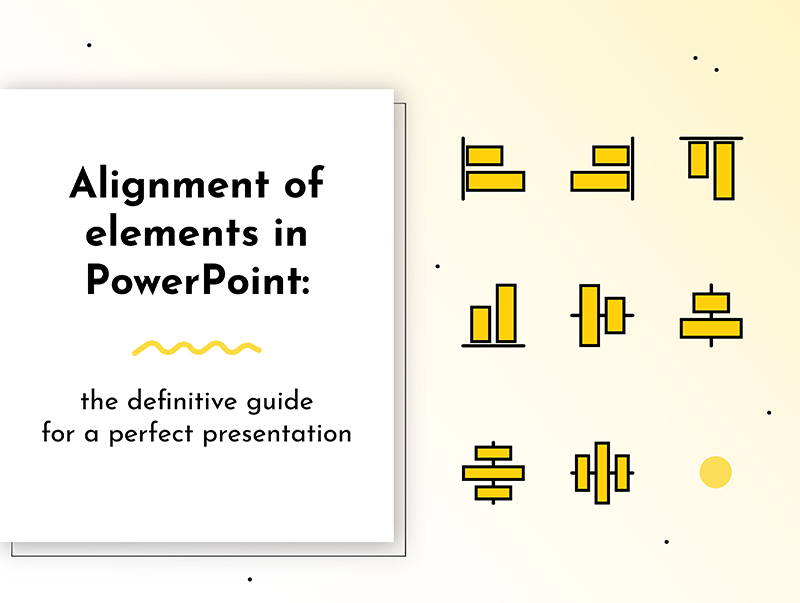
To align means to position objects along a common reference, such as the left edge, the center or the right edge horizontally, or the top edge, the center or the bottom edge vertically. This ensures that all the elements are perfectly aligned with each other along a specific axis.
Distribute, on the other hand, concerns the spacing between multiple objects: this function guarantees that the distance between each element is uniform, both horizontally and vertically. For example, if you have three images to arrange on a line, distribution will position them equidistantly, avoiding that some are too close or too far from the others.
By using both functions in combination, it is possible to obtain a harmonious and professional arrangement of the elements on the slide.
“Okay Maurizio, but how can I apply them to PowerPoint?”
Well, first of all, don’t do it manually!
When you align and distribute manually, you may think you’ve done a good job, but you only need to zoom in to realize that the distances are not exactly the same. And in a presentation, even small imperfections can be a blow to the image of your work!
Fortunately, PowerPoint offers an automatic alignment and distribution system that allows you to avoid going crazy with “eye positioning”. Thank goodness!
Read also: PowerPoint hacks you’ve never heard of
Alignment in PowerPoint
To align elements in PowerPoint, follow these steps.

- Select the objects to be aligned.
- Hold down Ctrl and click on each object.
- If you prefer, you can also drag the mouse to select multiple items at the same time.
- Open the alignment menu.
- Go to the Format Shape tab (or Format Picture, depending on the selected items).
- Click on Align (icon with aligned rectangles).
- Choose the type of alignment.
- Align left → all objects will move to the left edge of the leftmost element.
- Align center horizontally → all objects will be centered along an imaginary vertical axis.
- Align right → all objects will align along the right edge of the rightmost element.
- Align top → all objects will align along the top edge of the topmost element.
- Align center vertically → all objects will be centered along an imaginary horizontal axis.
- Align bottom → all objects will align along the bottom edge of the bottommost element.

Now your elements will be perfectly aligned, without the need to move them manually!
Distribution in PowerPoint
Here’s how to distribute objects in PowerPoint:

- Select all the objects you want to distribute.
- As with alignment, you can do this by holding down Ctrl and clicking on the elements or by dragging the mouse.
- Open the alignment menu.
- Go to Format and click on Align.
- Choose the distribution mode
- Distribute horizontally → the objects will be equidistant along the horizontal axis.
- Distribute vertically → the objects will be equidistant along the vertical axis.
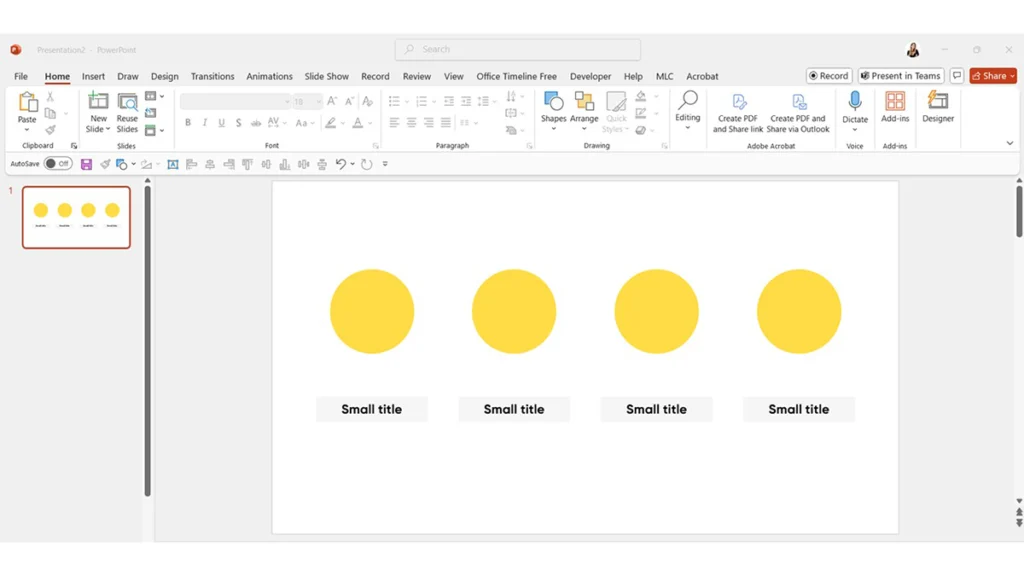
PowerPoint limitations and advanced solutions with the MLC PowerPoint Add-in
If you use the PowerPoint functions I’ve shown you for a while, you’ll realize that they work great, in fact, they work really well!
But, be careful, there is a small “but” to consider.
When you work with a few shapes or images, the basic PowerPoint system is more than enough, there’s nothing to say. But the situation changes when you find yourself with a lot of elements, like dozens, on a single slide. What happens in that case?
I’ll tell you right away: you go crazy going back and forth between menus, selecting and reselecting objects, fixing details by hand because something never aligns perfectly the way you’d like it to. This is precisely the point where many professionals, needing impeccable results without the time to achieve them, decide to entrust the entire process to a specialized PowerPoint presentation design agency.
One of the biggest problems is navigating through the menus. Every time you need to align or distribute, you have to go through the same routine: select the objects, open the “Format” tab, click on “Align”, choose the right option… and then, if you realize you’ve made a mistake, you have to start all over again.
Wouldn’t it be a thousand times better to have direct and immediate access to these functions? Like, just a click away!
And what about when you want a slightly different, more “personalized” distribution, because the distance that PowerPoint has decided to put between the elements doesn’t convince you at all: then you’re forced to fix everything by hand, risking creating small misalignments that may not be visible to the naked eye, but that are very noticeable in a presentation!
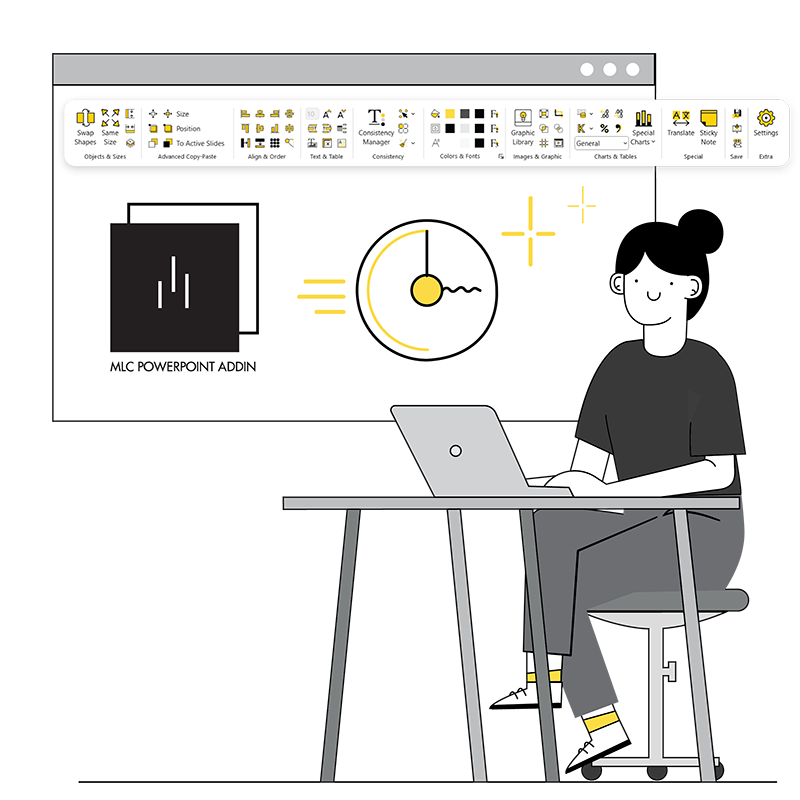
Our MLC PowerPoint Add-in takes care of all this, eliminating all these problems and saving you a lot of time!
How to align objects with MLC PowerPoint Add-in
MLC PowerPoint Add-in improves the PowerPoint alignment system, making it faster and more precise. Here you don’t have to navigate through menus, everything is done with a click.
Here’s how to use this feature.

- Select the main object you want to use as a reference point for alignment.
- Select the other objects you want to align with the main one.
- Click on one of the alignment buttons on the MLC PowerPoint Add-in bar:
- Align Left to align all objects to the left edge of the reference.
- Align Center to center them with respect to the vertical axis.
- Align Right to align them to the right.
- Align Top to align them at the top.
- Align Middle to center them vertically.
- Align Bottom to align them at the bottom.
And it’s done! The objects will move automatically without the need for further adjustments.
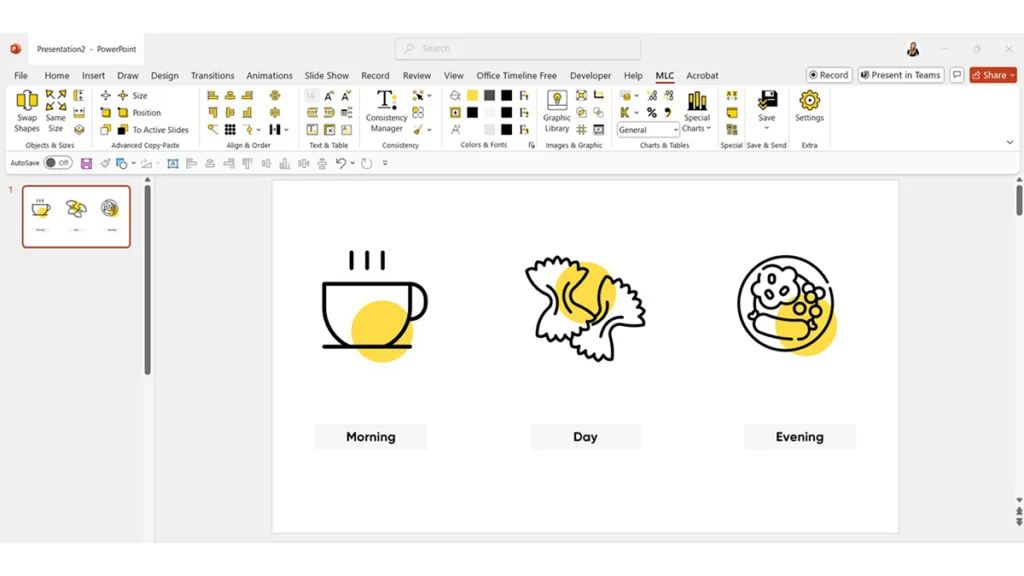
It’s child’s play!
How to distribute objects with MLC PowerPoint Add-in
Object distribution also becomes more precise with the MLC PowerPoint Add-in.
On PowerPoint, the elements are automatically distributed between the first and last of them, but you can’t choose the distance between them. With our tool, however, you can do it more intelligently by following these steps.

- Select all the objects you want to distribute.
- Choose the type of distribution in the MLC PowerPoint Add-in bar:
- Distribute Horizontally for an equidistant distribution along the horizontal axis.
- Distribute Vertically for an equidistant distribution along the vertical axis.
- The objects align immediately, maintaining the exact distances between them, without the risk of errors.

And just like that, with a single click, you can achieve a clean, professional and balanced layout!
Customize the Quick Access Toolbar and speed up your PowerPoint workflow
Did you think this guide was over?
No, we’re not finished yet: there’s one last trick you need to know to give a decisive boost to the speed with which you work on your professional presentations.
I’ve given you several suggestions to become fast and precise in aligning and distributing the elements on your slides, but do you know that there’s a way to reduce the time required even more?
Imagine you could access the alignment and distribution tools by having them always there, at your fingertips, always visible.
This is exactly what the Quick Access Toolbar allows you to do. It’s often underestimated but it can drastically improve your work speed because it allows you to gather all the functions you use most often so you can use them with a click directly from the bar!
By default, it is located at the top of the PowerPoint window and contains a few essential commands.

But here’s the good news: you can customize it by adding the functions you use most often, including those of our MLC PowerPoint Add-in!
To customize it, click on the arrow next to the toolbar and select “More Commands”.
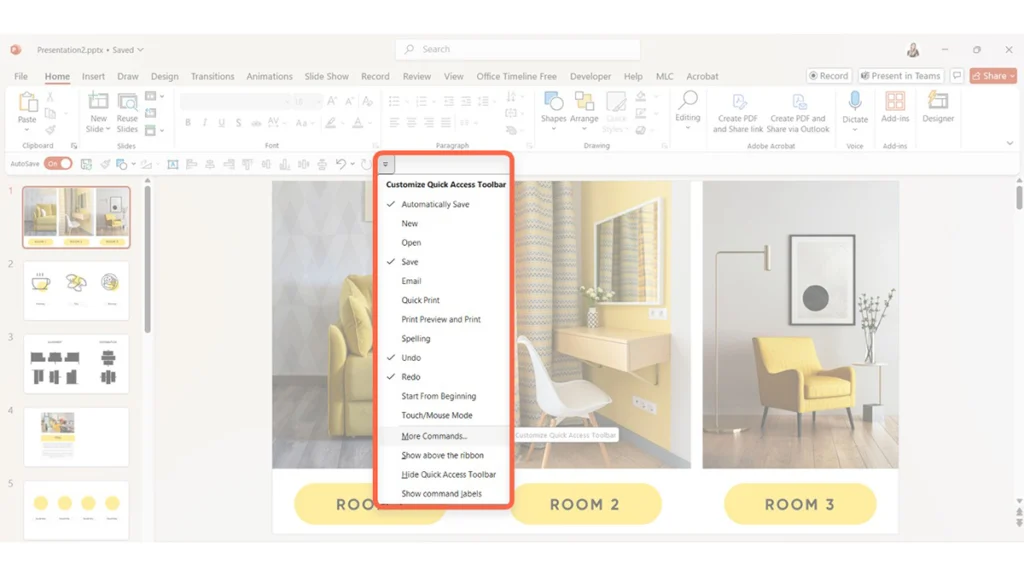
Here you’ll see two boxes: the one on the right shows you which functions are already in the Toolbar, but the one we’re interested in is the one on the left, which allows you to add as many as you like!

A little tip: before starting, click on the drop-down menu above the left-hand panel and select “All commands”, so you can choose any function!

Now, on the left you have a long list of commands that you can add. Perhaps even too long, don’t you think?
Well, to simplify your search, you can easily find what you need by clicking inside the box and typing the name of the command you want to add, for example, the Distribute Horizontally of the MLC PowerPoint plugin, as you can see below.

And now all you have to do is customize your toolbar to give your presentations a makeover! Maybe even with the help of my tutorial that you can find below!
Perfect alignment for clearer and more professional presentations
If you’ve made it this far, it means you’ve already taken a big step forward in making your presentations neater, more professional and more impactful. Now you know how important it is to align and distribute the elements on your slides correctly and, above all, you have the right tools to do it without wasting time.
PowerPoint offers more than valid basic solutions, but when the work becomes more complex, having a tool like MLC PowerPoint Add-in allows you to speed up the process and obtain an even more precise result. And if you want to go further, by customizing the Quick Access Toolbar, you can access the functions you use most often in an instant, without having to navigate through the menus every time.
So, next time you work on a presentation, pay attention to how you arrange the elements: a well-organized slide makes the difference between an attentive and engaged audience and one that gets lost in the disordered details. Now you have no excuse for leaving random alignments or imperfect spacing!
If you found this article useful, on our blog you’ll find many other tips to make your PowerPoint presentations even more effective.
Take a look and find out how to make each of your slides clear, impactful and professional!
Aligning elements on PowerPoint: FAQ
What is the difference between alignment and distribution on PowerPoint?
Aligning means positioning objects along a common reference, such as the left edge or the center, to ensure an orderly appearance. Distributing, on the other hand, concerns the uniform spacing between multiple elements, both horizontally and vertically, to obtain a balanced and harmonious arrangement on the slides.
What are the advantages of MLC PowerPoint Add-in over the standard alignment and distribution features of PowerPoint?
The MLC PowerPoint Add-in offers quicker and more intuitive access to the alignment and distribution functions, avoiding the need to navigate through PowerPoint menus. It also allows you to customize the spacing between elements with precision, an option not available in the standard functions. This tool simplifies the process and guarantees greater visual consistency in presentations.
How can I speed up alignment and distribution in PowerPoint?
To speed up alignment and distribution in PowerPoint, you can customize the Quick Access Toolbar by adding the commands you use most frequently. Alternatively, you can use advanced tools such as MLC PowerPoint Add-in, which offer more precise and accessible features with a single click.
Some illustrations were taken from Freepik and modified by MLC Design Team


Comments on Alignment of elements in PowerPoint: the definitive guide for a perfect presentation