Key Takeaways:
• The model matters more than the skill. Same deck and same skill, two different models produced results that do not belong in the same category. The selector sits at the top of the Copilot panel and ships set to Auto.
• Order decides the outcome. Story first with Revise this presentation, design second, objections last. Redesigning a deck whose structure does not hold is painting a cracked wall.
• The four setup questions are the brief. Audience, format, channel and duration drive everything downstream, including how many slides you end up holding.
• Visualize this slide returns an image, not a slide. Convincing when it works, permanently uneditable, and unusable on decks that will be updated or need to stay accessible.
• Prepare for questions is the skill nobody runs and the one that pays most. It produces a prioritized list of objections with acknowledgement, reframing and the evidence to add, before you walk into the room.
Introduction
The Copilot Skills in PowerPoint arrived quietly: three of them, plus a fourth capability that matters more than the three combined, because you can now write your own. To find out whether any of this survives contact with real work, I made a deliberate choice. Instead of starting from a deck that was already decent, I asked an AI model to generate the worst possible presentation about Lean Presentation Design. The result exceeded expectations, and it gave me exactly the material I needed.
What follows is the full walkthrough, step by step, with the screenshot of every screen you will see. It accompanies four short videos, and it works two ways. If you are watching, keep it open alongside: every step carries the timestamp, so you can jump straight to the part you care about. If you would rather not watch anything, the guide stands on its own and you can reproduce the whole thing in PowerPoint without pressing play once. If you are looking for the companion piece, the walkthrough on PowerPoint AI image editing covers the image side of the same toolset.
One finding is worth stating up front, because it reframes everything else. The skill you choose is not what determines the quality of the output. The model is. And for the first time, that choice sits in your hands, inside PowerPoint.
Want the whole walkthrough as a PDF? Get the 24-page guide with every screenshot and the four videos linked from inside the pages.
What you need
- PowerPoint desktop with Microsoft 365 Copilot enabled, Premium tier
- A real deck to work on, ideally one you have been putting off for weeks
- For custom skills, an account with access to the Frontier channel and a OneDrive folder
The skills available today
| Skill | What it does | When to use it | Video |
|---|---|---|---|
| Revise this presentation | Rebuilds the story and redesigns the deck | When the structure does not hold | 3:50 |
| Visualize this slide | Turns one slide into a graphic version | When a text slide needs to become visual, fast | 1:26 |
| Prepare for questions | Anticipates audience objections | Before any delivery that matters | 1:43 |
| Custom skills | Skills you write, called with the @ sign | When you want to codify a way of working | 1:25 |
Video 1: Rebuilding the story of a presentation
The starting point
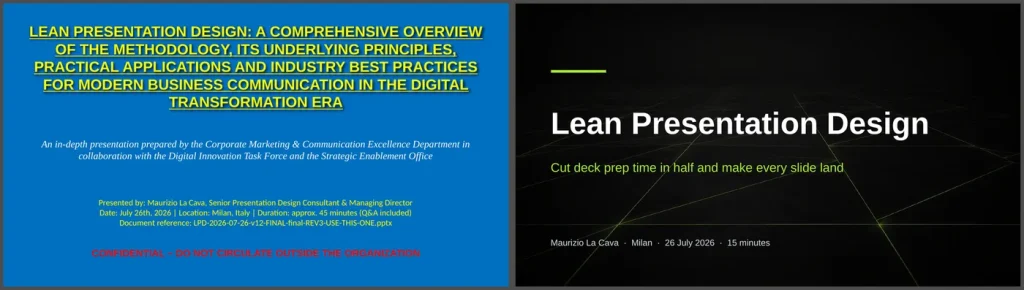
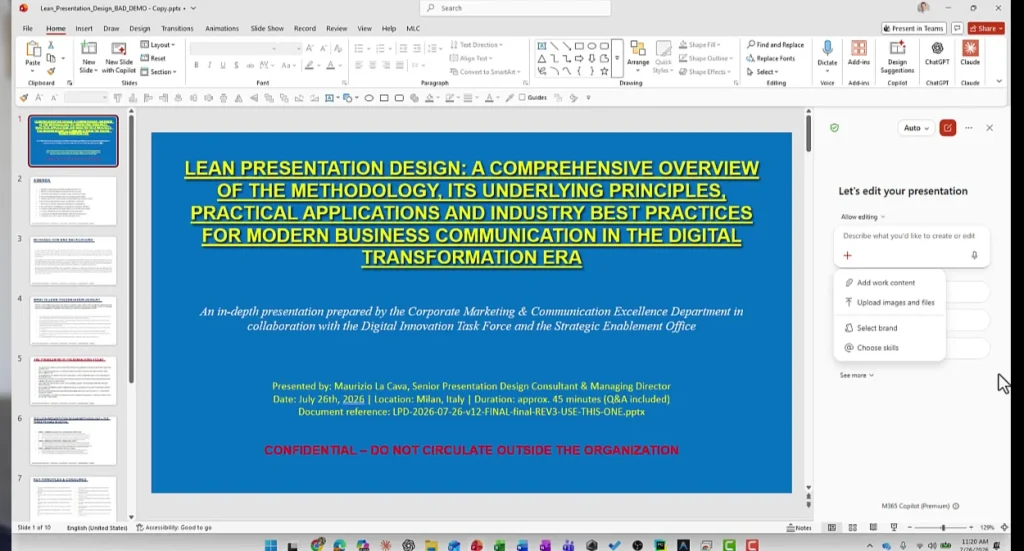
Ten slides, every principle of presentation design broken methodically. A four-line title in underlined yellow capitals on a blue background, an italic subtitle, three lines of credits and a red confidentiality stamp. At the bottom of the slide, the file name that gives the whole thing away.

Step 1. Open the Copilot panel
In the video: 0:21. The first thing to know is that Copilot has moved. It is no longer in the ribbon at the top: you now find it in the bar at the bottom. Open it, select the plus sign to reach the options, and choose Choose skills.
Step 2. Pick the right skill first
In the video: 0:28. Three skills appear. The first visualizes and redesigns a single slide, the second rebuilds the story of the presentation, the third anticipates objections.
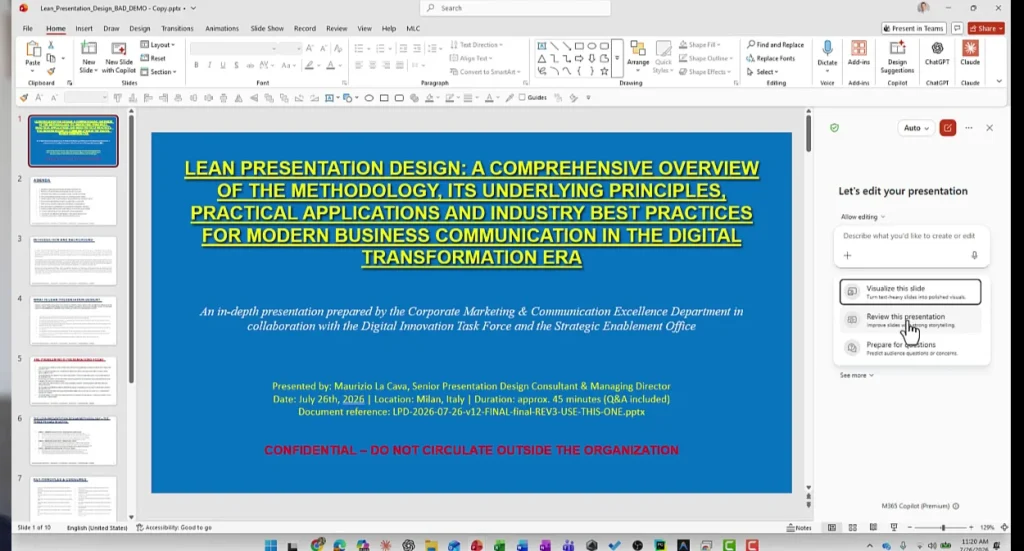
The correct order is different. A presentation always starts from its story, so the first skill to run is Revise this presentation. Redesigning the slides of a deck whose structure does not hold is painting a cracked wall. The prompt comes pre-filled, so all you do is hit send.
Step 3. Answer the four questions
In the video: 0:56 to 1:29. This is the most interesting moment in the whole video, and it almost slips by unnoticed. Before touching a single slide, Copilot asks four questions.
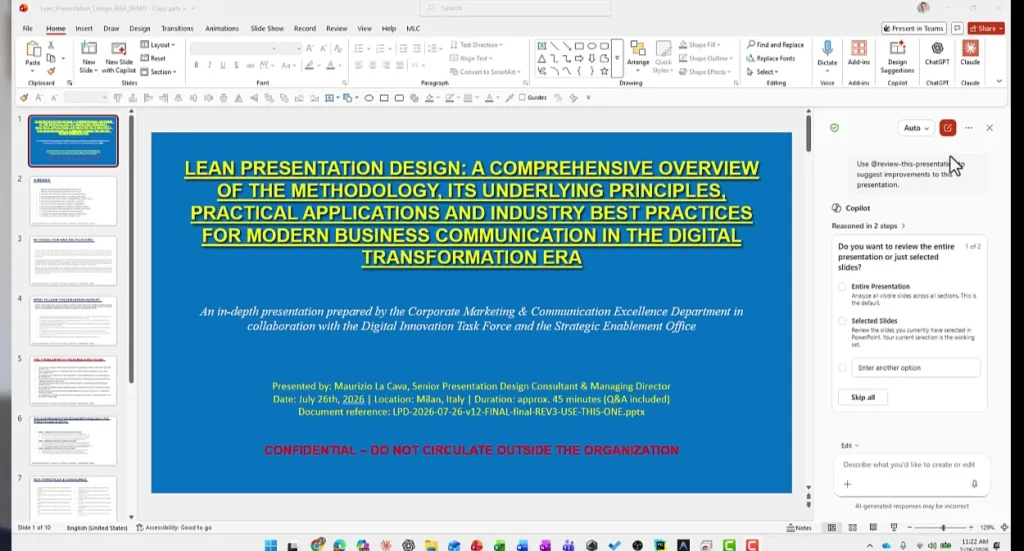
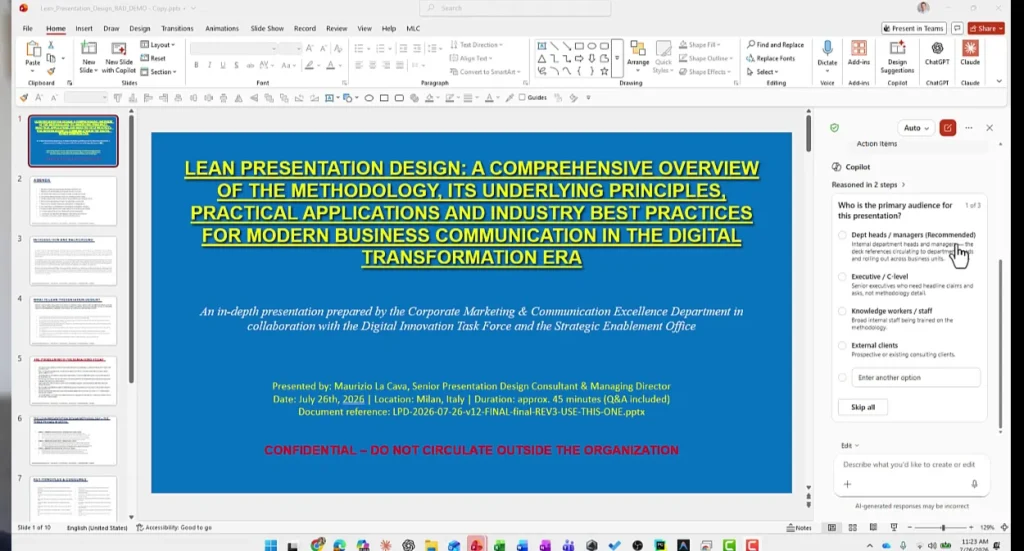
The remaining two cover the output format, where I picked concise action items, and the delivery conditions: live presentation, under fifteen minutes.
This is worth pausing on. For eleven years I have been telling rooms full of people that a presentation is designed starting from who is listening, through which channel and within what time budget, and that design comes afterwards. Seeing those same questions asked by a side panel inside PowerPoint means the principle has stopped being a methodological recommendation and has become the default behaviour of a tool that millions of people will use.
Step 4. Read the section review report
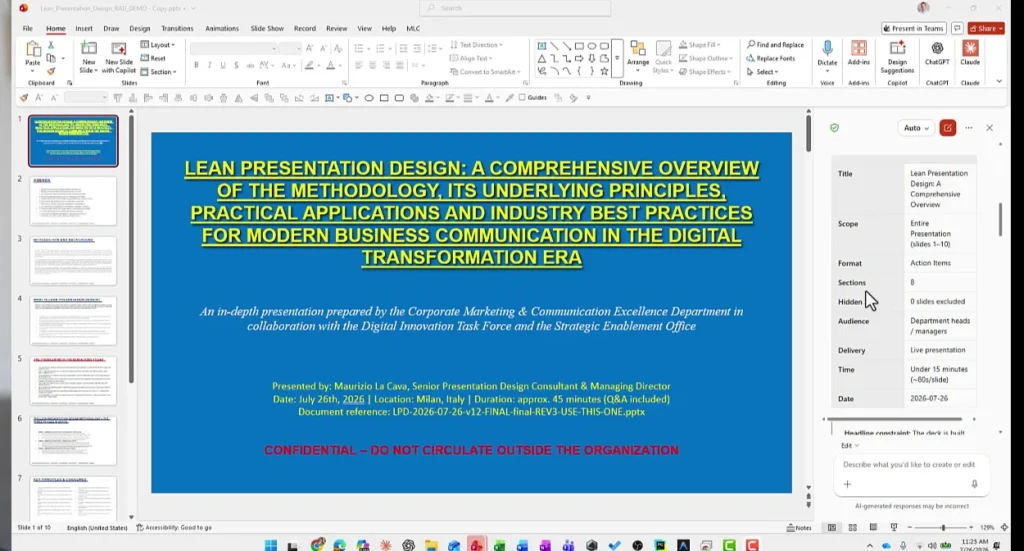
In the video: 1:29. Copilot returns a summary of the brief before proceeding: title, scope, format, number of sections, audience, delivery mode, time, date. Below it comes the proposed section split and the new narrative structure.
Step 5. The first result, and why it is not enough
In the video: 1:49. The deck gets rewritten and reorganized. The structure genuinely improves: the title shortens, the agenda becomes readable, content is grouped with some logic. The design, on the other hand, is untouched. The blue theme is still there, with the same yellow, the same layout. Calling that a redesign is generous.
At this point I could have accepted the result and concluded that these skills fix structure and nothing else. Instead I tried something.
Step 6. Change the model
In the video: 2:02. At the top of the Copilot panel there is a model selector. By default it sits on Auto. Open it and the available families appear.
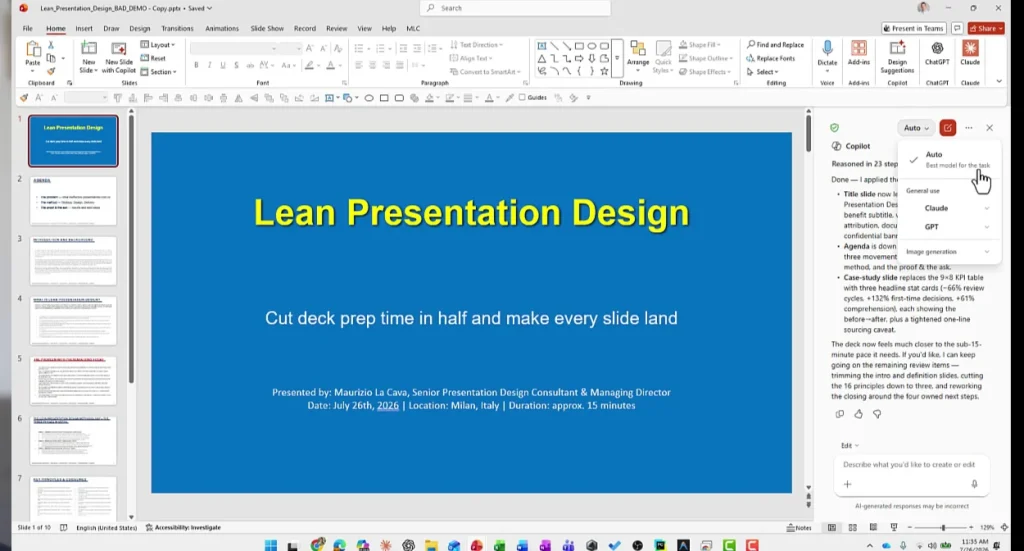
Step 7. Ask for a deep redesign
In the video: 2:12. With the new model in place Copilot asks two more questions: keep the existing theme or replace it, and whether to use icons and images. I asked for a deep redesign, with icons and images.
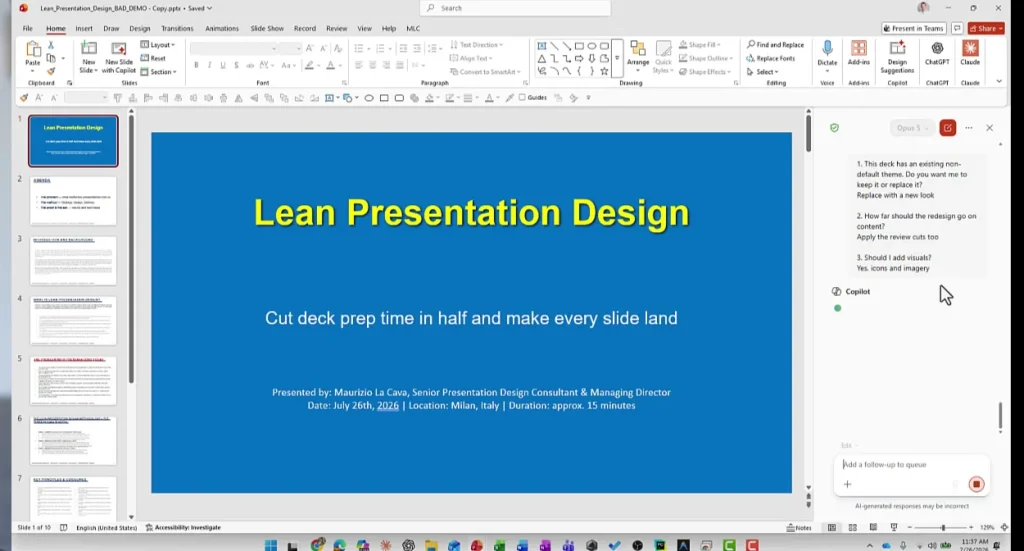
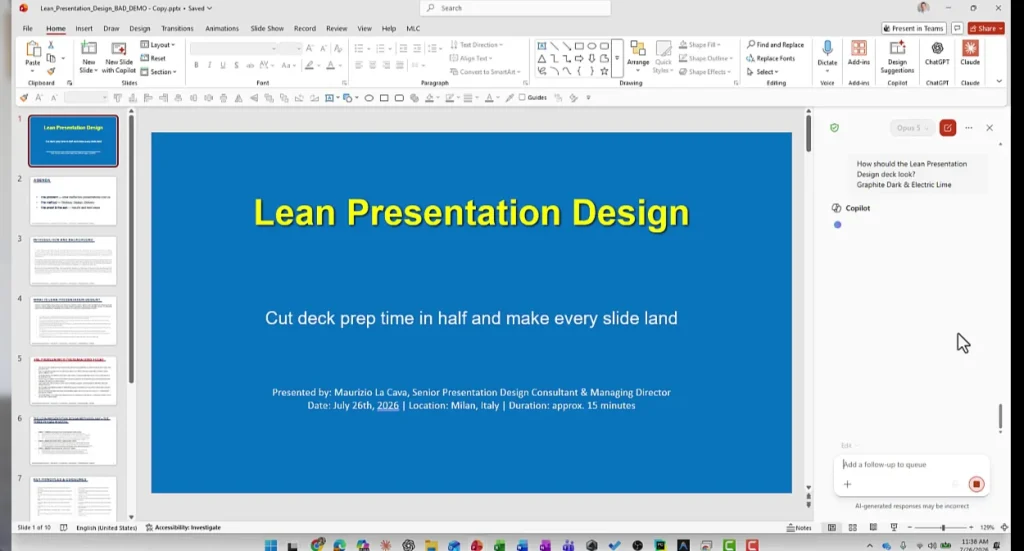
Then it proposes several styles. I chose Graphite Dark and Electric Lime, deliberately far from the MLC visual identity, so I would see something original and so the model could not lean on a brand that was already defined for it.
Step 8. The result
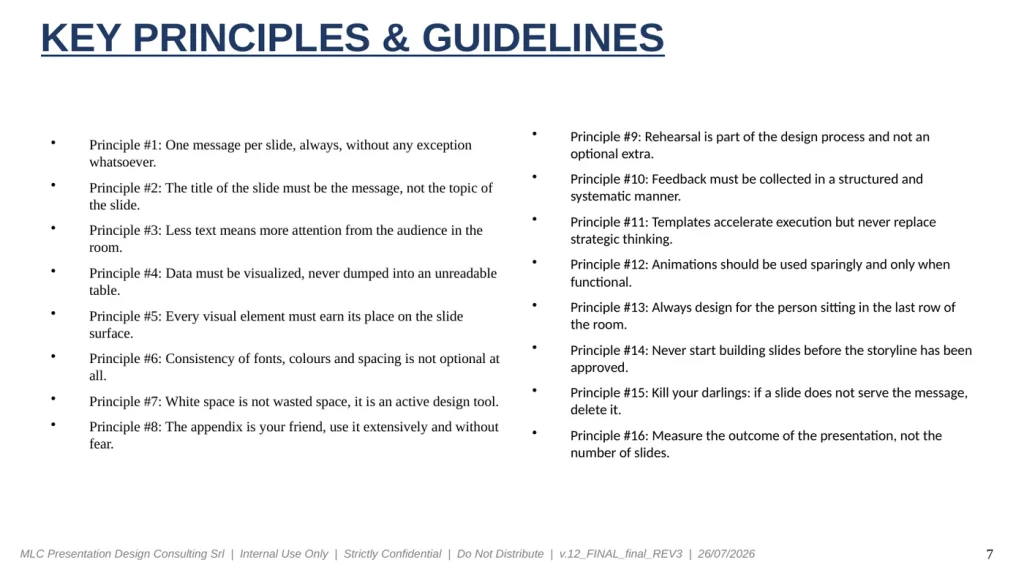
In the video: 2:44. This is work of a different order. There are reading levels, differentiated layouts, icons and images, numbers given weight, a next steps section and a closing wrap up.
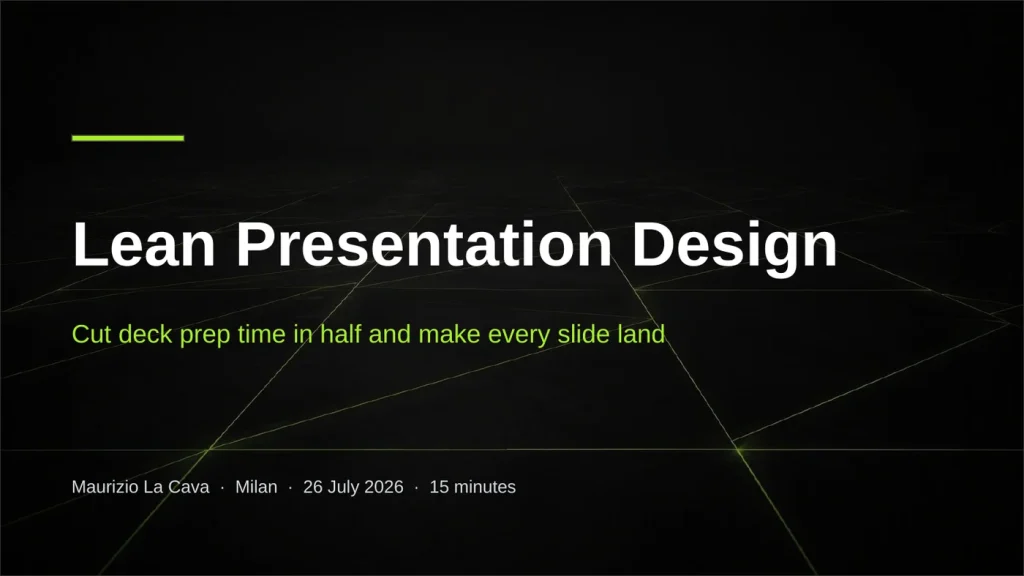
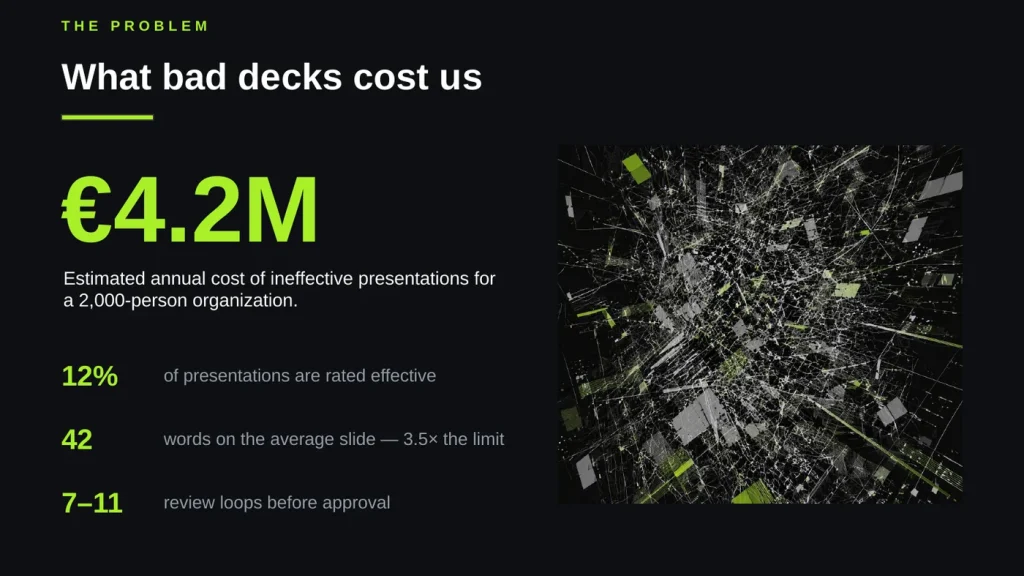
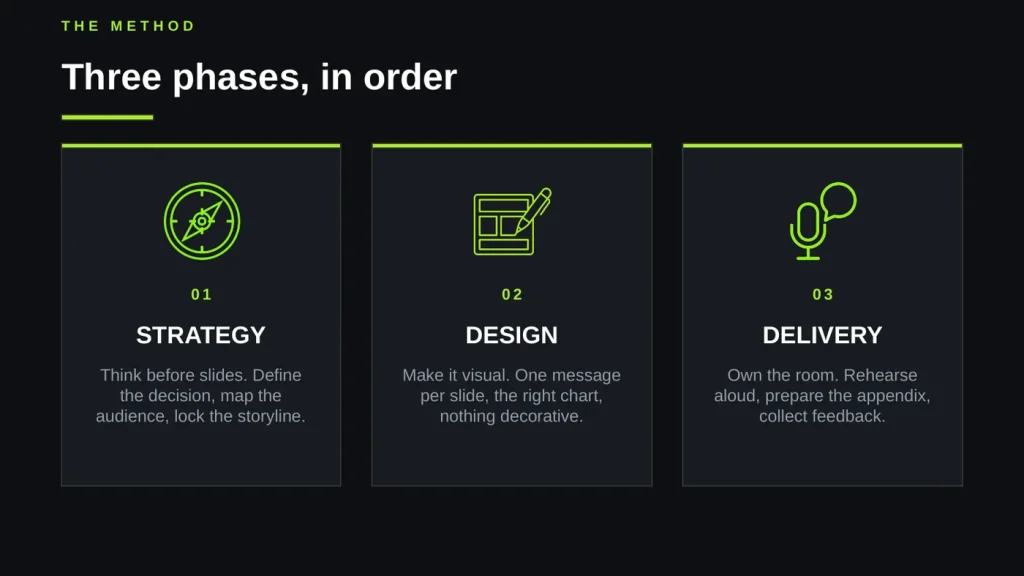
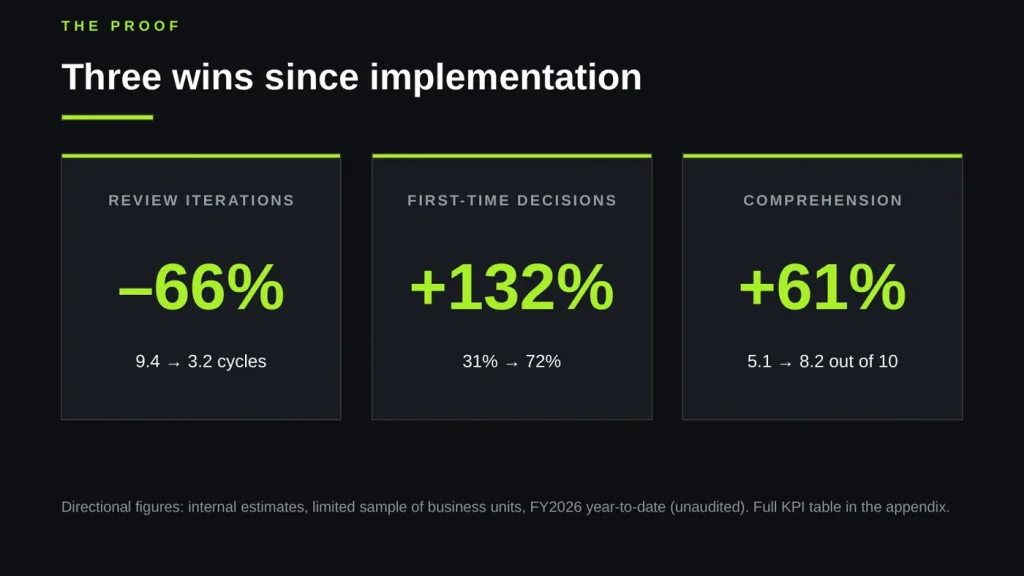
It is worth reading what Copilot says it did:
The redesign is done and saved. The deck now runs on a graphite-and-lime look with custom line-art icons and photography, and it carries the review’s cuts: a tightened title, a three-movement agenda, and the case-study table replaced by three headline numbers. It’s down to nine slides, which should land comfortably inside your 15 minutes.
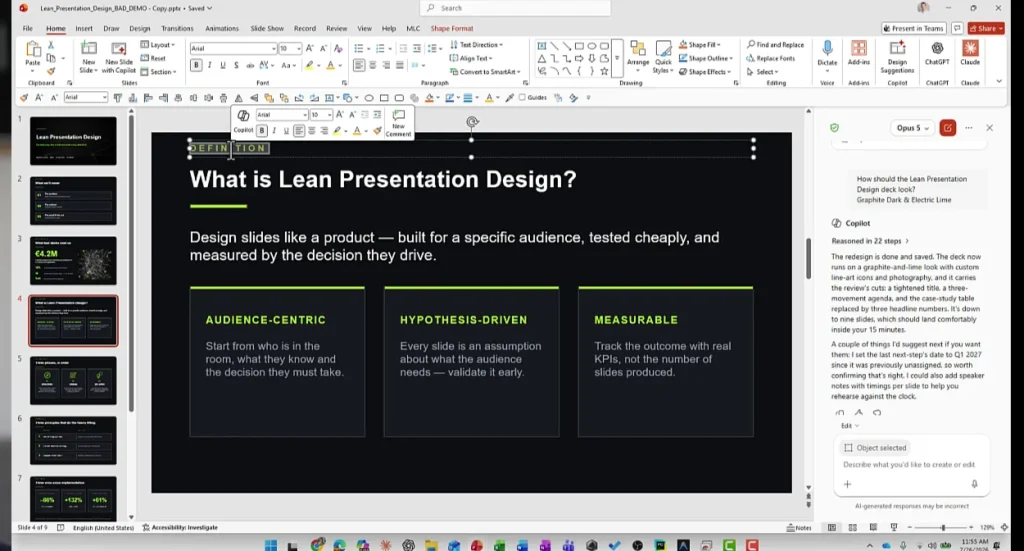
Nine slides against a stated fifteen minute constraint. The model did not just redesign: it respected the time budget I gave it back in step 3. That is the proof those four opening questions were not a formality.
One thing worth knowing
The final deck carries a few recurring stylistic tells, particularly certain uppercase labels above the headlines, which I immediately recognize as the signature of an Anthropic model. If you produce decks with AI in a context where visual identity matters, keep this in mind: models are developing recognizable accents, and a trained eye spots them on sight. I went deeper into what that costs you in AI is killing your presentations.
Video 2: Turning a slide into a visual
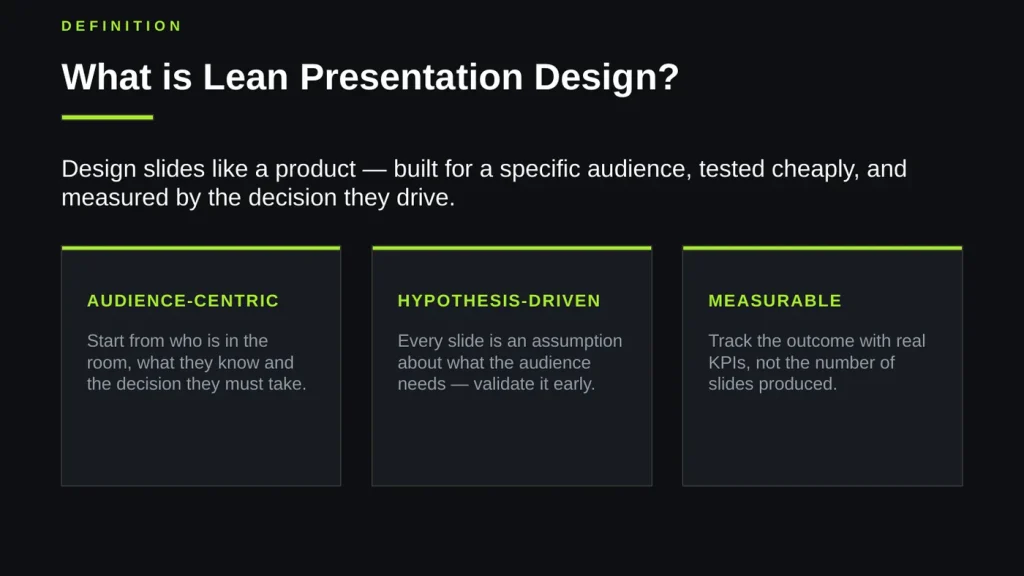
The deck rebuilt with Opus 5 contains a definition slide: one claim and three text cards. It works, and it is still a slide made of words. The Visualize this slide skill exists for exactly this.
Step 1. Select the slide and call the skill
In the video: 0:10. Land on the slide you want to transform, open the skills and choose Visualize this slide. Alternatively type the @ sign in the prompt field: the search suggests the available skills.
Step 2. Change the model again
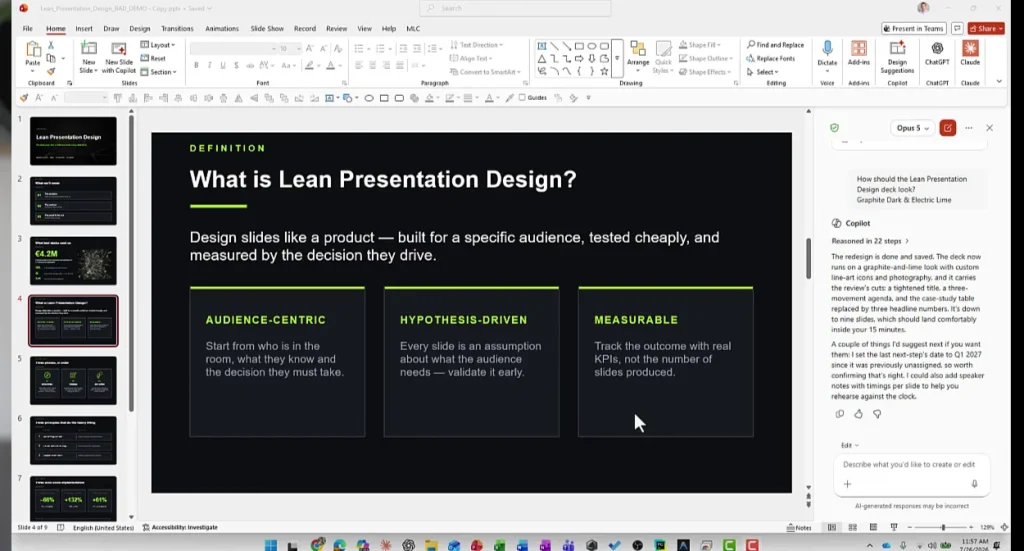
The deck had been built with Opus 5. For this test I selected GPT-5.6, the opposing model, to see how a different engine reads the same content. This is more than a technical curiosity: it means you can run two models on the same file, picking whichever performs better on each kind of task.
Step 3. The result
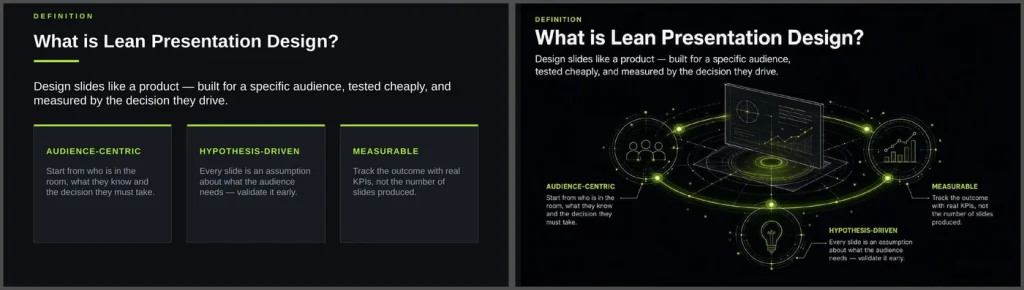
In the video: 0:39. The result is convincing and, more importantly, it lands the message. This is not decoration: the illustration says the same thing the three cards were saying.
The limit to know before you use it
In the video: 0:54. There is a price, and you should know it in advance: the entire slide becomes a single image. Text is no longer selectable or editable, individual elements cannot be moved, accessibility is gone and the content is no longer searchable.
Video 3: Anticipating the objections of your audience
This is the skill I recommend most and the one people talk about least, because it produces nothing visible on the slides.
Step 1. Run the skill
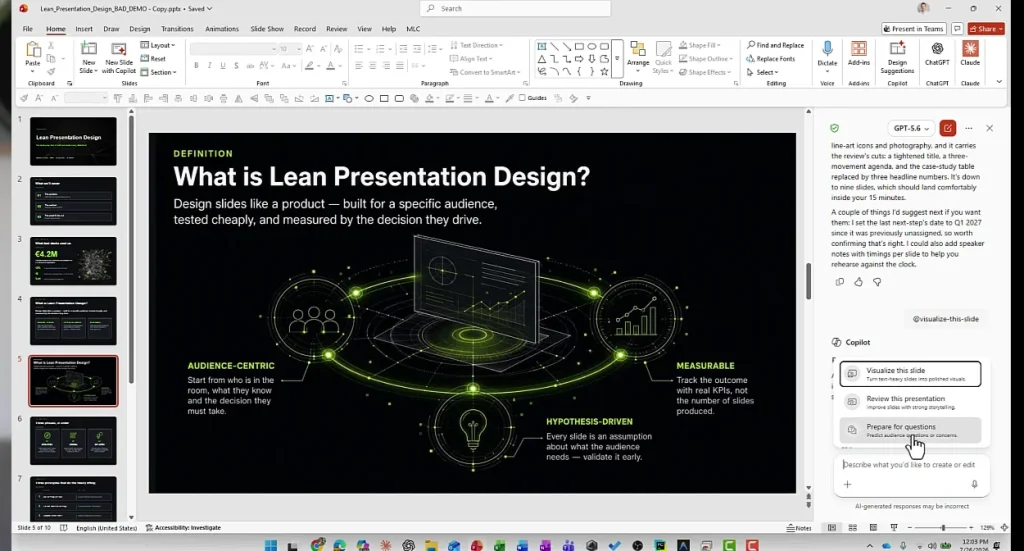
In the video: 0:21. Open the skills and select Prepare for questions. The prompt is pre-filled here too: hit send.
Step 2. Define the context
In the video: 0:30. Copilot asks who the presentation is for, what outcome you want, and how you will deliver it. In my case: Learning and Development Leaders, goal approve of approach, delivered in person. Be precise on these three fields. The objections of an investment committee are not the objections of an internal team, and the quality of the output depends almost entirely on how well the context is defined.
Step 3. Read the output
In the video: 0:42. Here comes the surprise. The output is not a list of possible questions. For each objection Copilot produces four fields and a priority: Objection, Acknowledge, Reframe, Evidence.
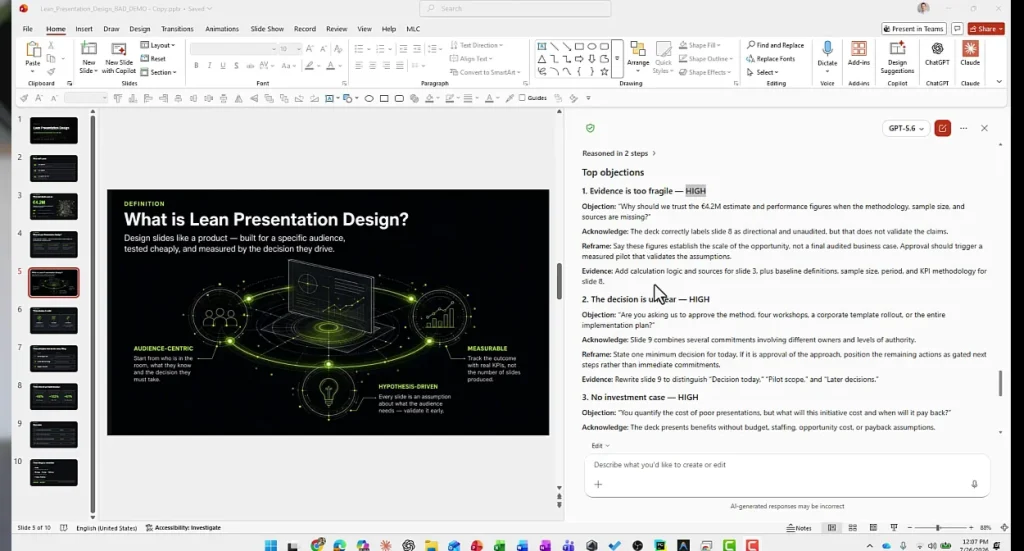
The three high-priority objections on my deck were these.
One, the evidence is fragile. “Why should we trust the €4.2M estimate and performance figures when the methodology, sample size, and sources are missing?” Copilot notes that the deck does label the figures as directional, observes that labelling does not make them valid, suggests repositioning the numbers as the size of the opportunity rather than an audited business case, and points to the exact slides where calculation logic, sources, baseline definitions and KPI methodology should be added.
Two, the decision on the table is unclear. “Are you asking us to approve the method, four workshops, a corporate template rollout, or the entire implementation plan?” The next steps slide mixes commitments with different owners and different levels of authority. The proposal is to separate today’s decision, the pilot scope and the later decisions explicitly.
Three, there is no investment case. “You quantify the cost of poor presentations, but what will this initiative cost and when will it pay back?” Benefits are presented with no budget, no headcount, no opportunity cost, no payback assumption.
These are the three questions that turn up in the room every time. None of them is about the slides: all three are about how solid the argument is.
Video 4: Writing your own Copilot skills
The three skills above are the ones Microsoft decided for everybody. The more interesting development is that you can now write your own.
The skills are one way to put Copilot to work. Supplying it with a structure is another, and it behaves differently: in how to guide Copilot with a template, a timeline layout taken from the MLC assets portal is pasted into the deck first, and Copilot extends it instead of inventing a design of its own.
Calling a custom skill
In the video: 0:07. Typing the @ sign in the Copilot panel triggers a smart search that suggests the available skills. Custom skills are switched on from the Choose skills panel and, for now, are available in the Frontier channel.
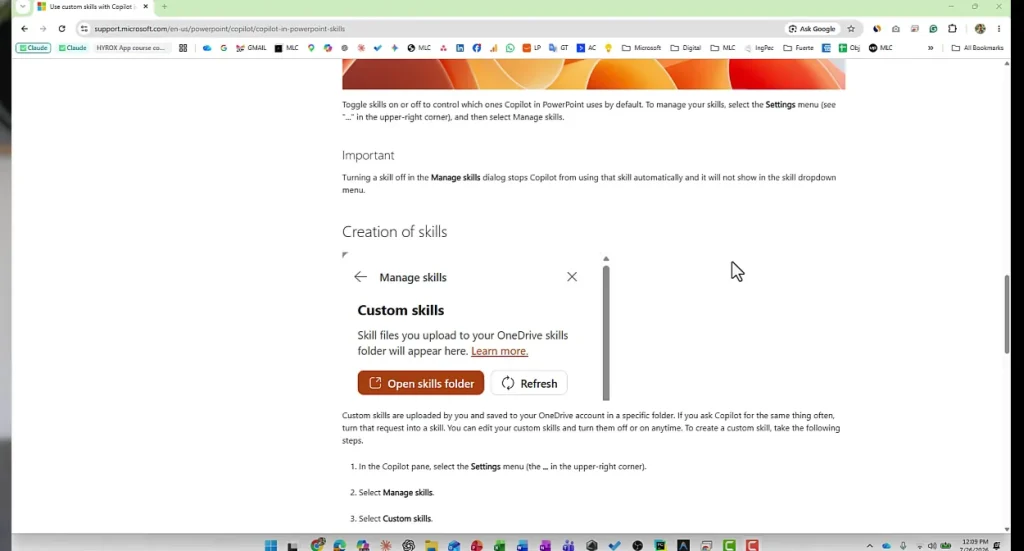
How a skill is structured
In the video: 0:39. Each skill is a folder on OneDrive, and inside that folder sits a single file called SKILL.md. The file has two sections.
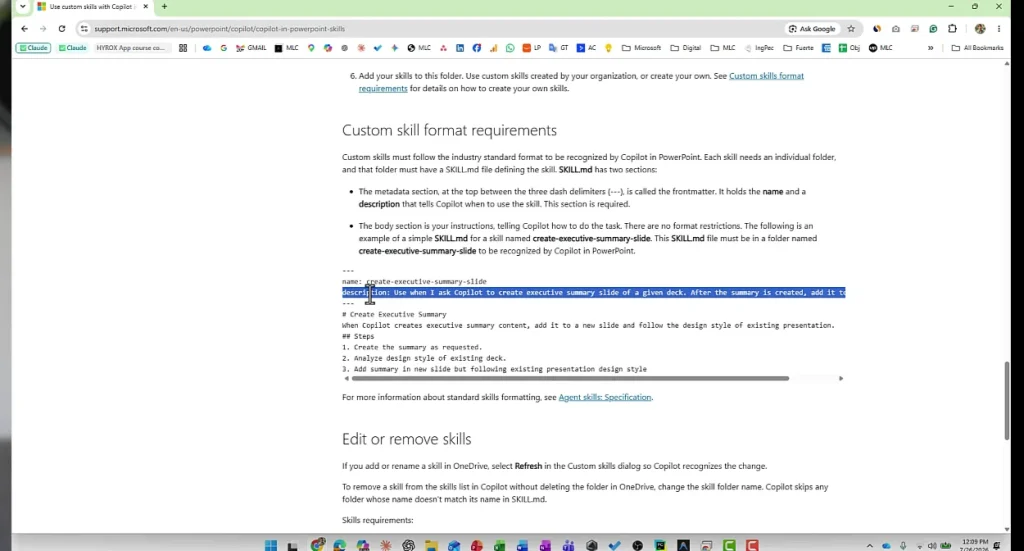
The first section is the frontmatter, delimited by three dashes, holding two required fields: name and description. The description does not describe the skill to you: it tells Copilot when to use it. It is the field that determines whether the skill fires at the right moment, and the one worth the most attention. The second section is the body, written in plain language with no format restrictions. This is where you explain how the work gets done.
Here is the shape of the example published in the Microsoft documentation on custom skills for Copilot in PowerPoint:
---
name: create-executive-summary-slide
description: Use when I ask Copilot to create executive summary slide
  of a given deck. After the summary is created, add it to a new slide.
---

# Create Executive Summary

When Copilot creates executive summary content, add it to a new slide
and follow the design style of existing presentation.

## Steps
1. Create the summary as requested.
2. Analyze design style of existing deck.
3. Add summary in new slide but following existing presentation design style
The operating rules
In the video: 0:58. Three things to remember while managing your skill repository.
- The folder name must match the name field declared inside SKILL.md. If they differ, Copilot skips the folder.
- After every edit, press Refresh in the custom skills dialog, otherwise Copilot keeps using the previous version.
- To switch a skill off without deleting it, rename the folder so it no longer matches the declared name.
A skill is a text file. Which means a way of working, a brand rule, a recurring format, a quality check on slides can be written once and become a behaviour available inside PowerPoint to anyone on the team. The interesting question stops being what Copilot can do and becomes which competence is worth codifying first.
Conclusion
If you only remember five things from these four videos, make them these.
- Order matters. Story first with Revise this presentation, then design, then objections. Redesigning a deck whose structure does not hold is wasted time.
- The model matters more than the skill. Same deck, same skill, different models produced two results that do not belong in the same category. The selector sits at the top of the Copilot panel and it defaults to Auto. Open it.
- Answer the setup questions properly. Audience, format, channel and duration drive everything downstream, including how many slides you end up holding.
- Visualize this slide produces images. Beautiful ones, when it works, and permanently uneditable. Use it only on slides you will never touch again.
- Prepare for questions is the skill nobody runs and the one that pays most. Make it standard before every delivery that matters.
A checklist to keep open
- Open Copilot from the bottom bar, not the top ribbon
- Choose the model before running the skill
- Run Revise this presentation and answer the four questions
- Check the section review report before giving the go-ahead
- If the result disappoints, change the model rather than the prompt
- Use Visualize this slide only on final slides
- Run Prepare for questions before every presentation that matters
- Turn the checks you repeat on every deck into custom skills
So which skill would you write first? If you had to encode one rule from the way you work into a file and hand it to Copilot, what would it be? Tell me in the comments.
FAQ: Frequently Asked Questions
Where are the Copilot skills in PowerPoint?
In the Copilot panel, which now opens from the bar at the bottom of PowerPoint rather than from the ribbon at the top. Select the plus sign and then Choose skills. Three skills appear: Visualize this slide, Revise this presentation and Prepare for questions.
Can I choose which model Copilot uses in PowerPoint?
Yes. The Copilot panel has a model selector at the top, set to Auto by default. You can switch to a specific family and version, for example Claude Opus 5 or GPT-5.6. In the test shown here, changing the model produced a dramatically better redesign from the same deck and the same skill.
Why does the Visualize this slide skill make my slide uneditable?
Because the skill replaces the slide content with a single generated image. The text becomes part of that image, so it is no longer selectable, editable or searchable, and the slide loses accessibility. Use the skill only on slides you do not plan to update.
What does the Prepare for questions skill actually produce?
A prioritized list of objections rather than a list of questions. For each objection it gives the likely question, an acknowledgement of the weak point in your deck, a suggested reframing of the answer, and the evidence you should add to the specific slides involved.
How do I create a custom skill for Copilot in PowerPoint?
Create a folder in the custom skills location on OneDrive and put a single SKILL.md file inside it. The file needs a frontmatter section between three dashes with the fields name and description, then a body with the instructions in plain language. The folder name must match the name declared in the file, and you press Refresh in the Manage skills dialog after every change.
Are custom skills available to everyone?
At the time of recording, custom skills for Copilot in PowerPoint are available in the Frontier channel. The three built-in skills require Microsoft 365 Copilot Premium.


Comments on Copilot Skills in PowerPoint: the step-by-step guide to all three skills (and to writing your own)